This is my quest to using my Google Pixel 9 Pro Android phone as thin client in a docking station, with GrapheneOS build 2026032001, Android 16.
Using the phone as thin client requires an USB-C 3.x connector with "DP alternate mode" or "HDMI mode" to output a display signal
over the USB-C cable. It also requires a higher quality of USB-C cable that connects all the wires. Some cheap (and not-so-cheap) cables don't connect all the pins and thus will not work.
Experience
With the 2026032001 build, you plug the phone into the docking station, select the display mode to extend the screen to the external display, and it just works. The mouse and keyboard input work anyway,
and the phone asks you whether to connect the screen as a secondary display or to mirror the phone screen to the external display.
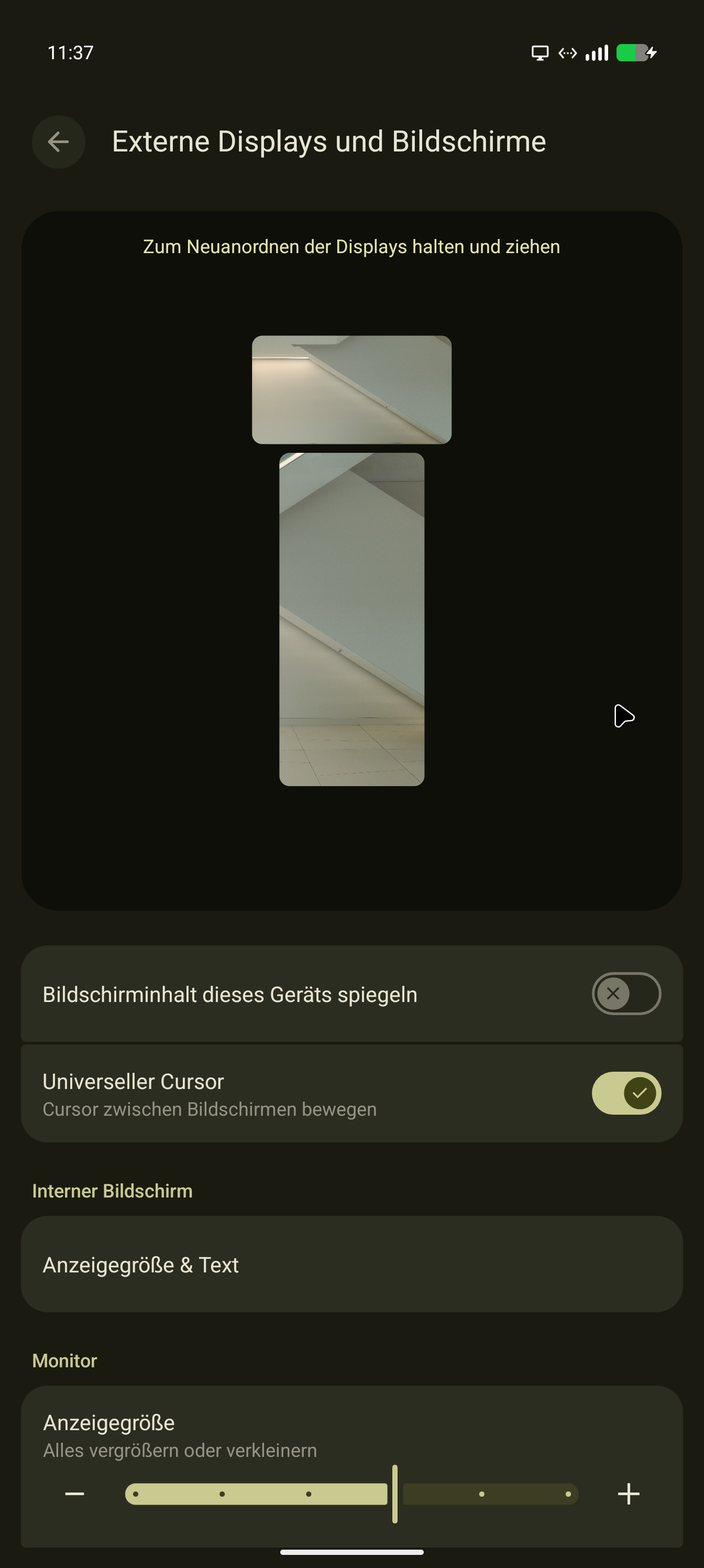
Display setup
The mouse cursor can now move between the desktop display and the phone display.
You can even arrange the location of the phone relative to the large screen.
Adding an off-brand magnetic cable connector ("Magsafe") still lets the video
work. I prefer this in situations where I expect to disconnect / reconnect the
phone often. This was a "USB4 40 Gbps USB-C Magnetic Adapter" from
Amazon or AliExpress.
As I wiped my old Samsung S10, I can't really compare the experience with
Samsung Dex, but for mild desktop working, using Android Desktop Mode is OK
as long as you have a mouse and keyboard connected. I couldn't find a way
to make the phone screen act as touchpad for the external screen.
Configuring the DPI for your external screen
My display is a small display with a lot of pixels and I suspect it reports some
ridiculous DPI to Android. On my display, the controls, fonts and buttons were
rather large, crowding out the content. You get a slider in the settings that
changes some display parameter. I pulled the slider for the external display
all to the left, which made the display on the external screen mildly less
grotesque. The phone screen remained as-is, so that setting seems to be
per-display.
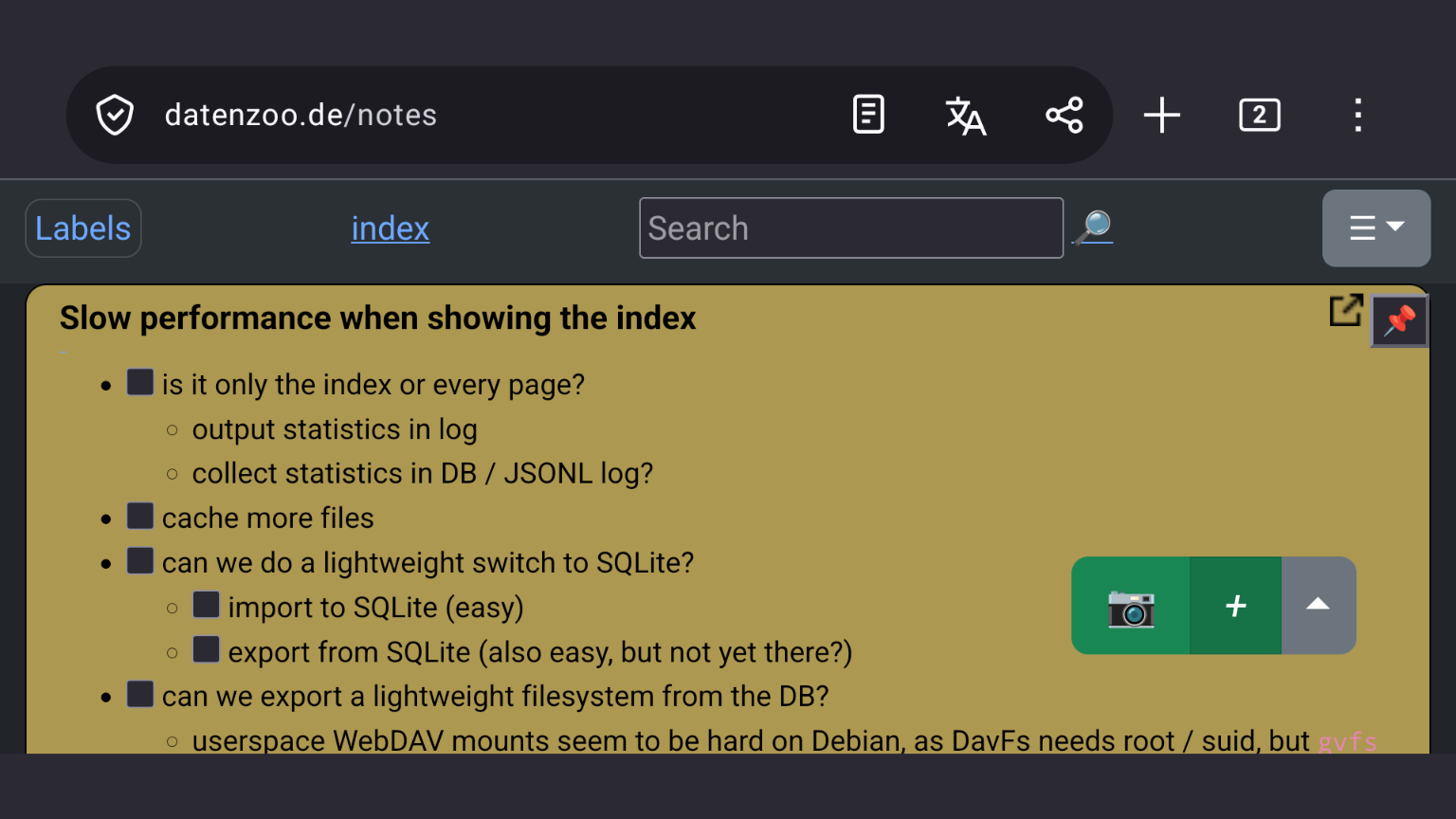
The display is a 4K display with 11" diagonal, so the controls and fonts
are rather large:
Weird stuff
Home 4K display is supplied at 1920x1080 , but Android displays everything as
if it were a 1280x800 display. This maybe is due to the display being a 4K 11"
display which I use for videoconferencing.
Launching apps on the home display does not work. It works on the display at
work. Maybe this is also due to the ridiculously low resolution / large icons.
Even with the changed DPI settings, I was unable to properly launch an
application via the task bar on the external screen.
Drawbacks
On my Google Pixel 9 Pro, it makes a difference with one USB-C to USB-C cable
whether it is plugged in upside down. I now have to shop Amazon to find a
trusted Known Good USB-C USB-C cable that supports alternate mode. The USB-C
cable that came with my docking station works in both orientations.
I've ordered a bunch of USB-C cables from Amazon and will try them out,
expecting the cheap ones to fail.
This is my yearly look at Android Desktop Mode.
The idea is to use my phone, docked to a screen, keyboard and mouse as a remote desktop platform. The goal is to run a remote desktop through RDP,
Citrix Workspace, or another such app, and use MS Teams and other stuff
supplied by that remote machine/VM. That way, I would not need a laptop since my phone has enough power to do the RDP thing.
Phone version
Pixel 9 XL
GrapheneOS 20251225
Android 16
Setup 1 ("Amazon Basics")
Phone connected to Amazon Basics USB-C docking station with HDMI display
Screen gets recognized and added (1600x900 or 1920x1080 resolution), a taskbar shows up at bottom, but no tasks other than Camera can be launched from it. After the screen lock activates, the taskbar is gone. Mouse works, keyboard not tested (?!). Taking a screenshot of the Android Desktop is not possible.
Setup 2 ("HP")
Phone connected to HP USB-C docking station with HDMI display.
What works in Android 16
HP: Desktop appears on HDMI screen, mouse and keyboard work. Taskbar at the bottom of the HDMI screen. Remote desktop works and displays. Phone-local apps and the remote desktop can live on the phone desktop and can be resized without problem.
What doesn't work in Android 16
HP: Screen resolution is weird. Smaller screen space, but pixel count seems to be full-width and then scaled down to smaller screen space.
Fennec HTML zoom is very weird and seems to orient itself on the phone-screen measurements, not on the HDMI screen measurements. Further debugging is needed.
External camera and microphone don't seem to work with the Citrix Workspace app.
End of 2024, I got me a Huawei Band 8 on a lark, seeing that there was a used exemplar at Amazon for € 24.
I mainly wanted to try out how well it works with GadgetBridge, and even if it doesn't, a small computer with a screen for € 24
sounded interesting.
Good
- works with Gadgetbridge. "Deep Sleep" is not recognized/supported, but that's not really important to me.
- saves me 10 minutes in my morning routine, as I don't reach for my phone anymore when getting up, preventing one cycle of mails and doomscrolling
- even can install custom watchfaces
- cheap replacement bands on AliExpress, in various colours
Bad
I didn't find a good way to create custom watchfaces:
GadgetBridge cannot upload my own pictures as backgrounds. I would like this, as I prefer to have pictures that I took myself around me.
Surprises
- gets too hot in direct sunlight at 25°C , warns about it and then switches off
I recently discovered KDE Connect.
It is a mobile app with a desktop companion to connect the machines.
It's not only for connecting your mobile to your desktop, or laptop PC. It also
connects these machines among each other. This means you can use it for convenient
file sharing between machines, and not only for sharing between mobile and desktop.
This actually proves more convenient than file sharing via a common SMB share.
It has various other features:
- automatically pause music playback on your machines when a phone call comes in
- display incoming text messages on other machines
- launch custom commands on the desktop from the phone
- presentation remote
These features sound all convenient but except for the auto-pausing of sound
playback, I have not used them.
It's available on Android, Apple, Windows, Linux and many other OSes.
Google-free!
I'm now completely Google-free, using Lineage OS 17. The only stuff I need
from the Google Play store is the Steam mobile app for two factor authentication
with Steam.
Most software now comes from the F-droid store.
These are my uses for the phone:
Continue reading What's on my Phone in 2020...