Android Desktop Mode on Android 16
previously
This is my quest to using my Google Pixel 9 Pro Android phone as thin client in a docking station, with GrapheneOS build 2026032001, Android 16.
Using the phone as thin client requires an USB-C 3.x connector with "DP alternate mode" or "HDMI mode" to output a display signal over the USB-C cable. It also requires a higher quality of USB-C cable that connects all the wires. Some cheap (and not-so-cheap) cables don't connect all the pins and thus will not work.
Experience
With the 2026032001 build, you plug the phone into the docking station, select the display mode to extend the screen to the external display, and it just works. The mouse and keyboard input work anyway, and the phone asks you whether to connect the screen as a secondary display or to mirror the phone screen to the external display.
Display setup
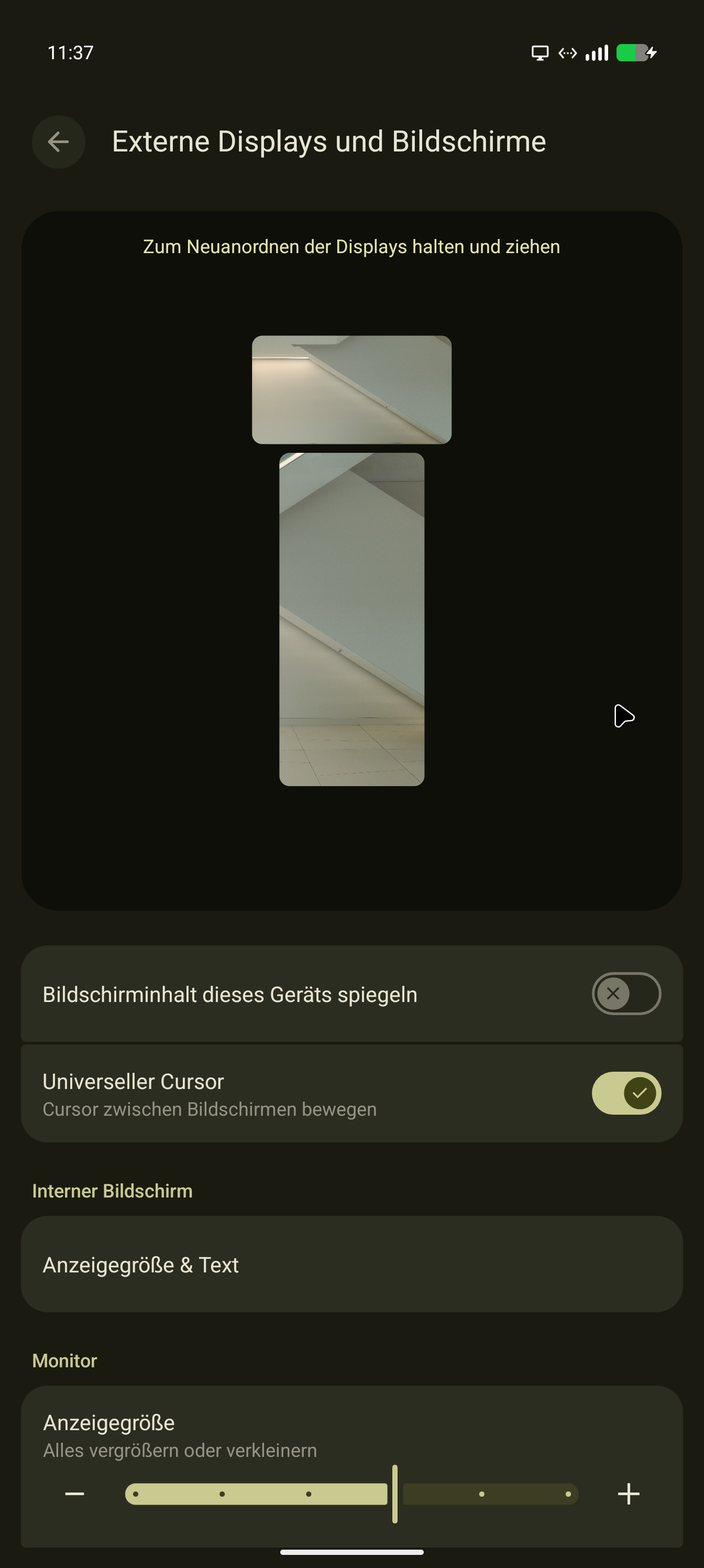
The mouse cursor can now move between the desktop display and the phone display. You can even arrange the location of the phone relative to the large screen.
Adding an off-brand magnetic cable connector ("Magsafe") still lets the video work. I prefer this in situations where I expect to disconnect / reconnect the phone often. This was a "USB4 40 Gbps USB-C Magnetic Adapter" from Amazon or AliExpress.
As I wiped my old Samsung S10, I can't really compare the experience with Samsung Dex, but for mild desktop working, using Android Desktop Mode is OK as long as you have a mouse and keyboard connected. I couldn't find a way to make the phone screen act as touchpad for the external screen.
Configuring the DPI for your external screen
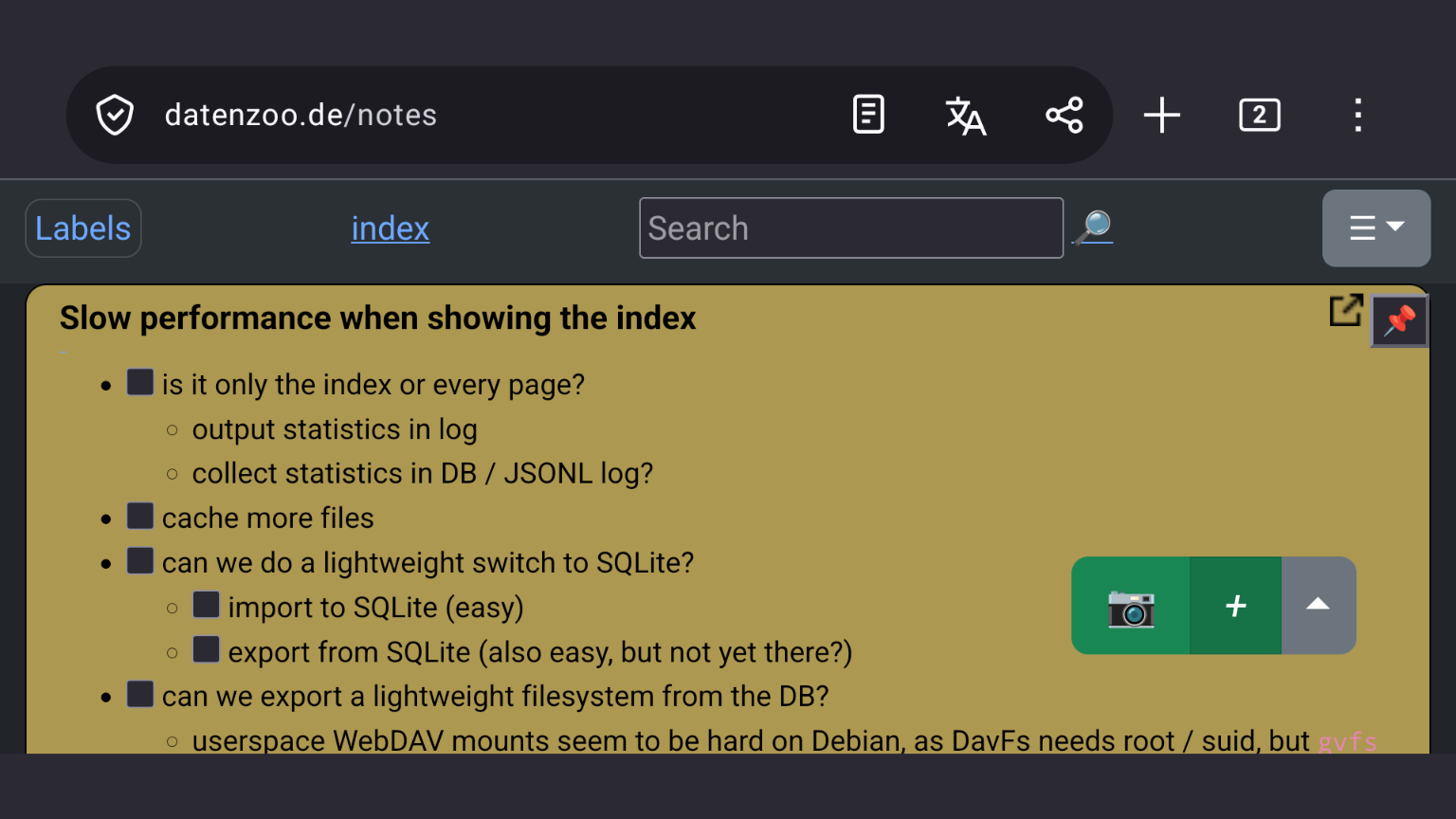
My display is a small display with a lot of pixels and I suspect it reports some ridiculous DPI to Android. On my display, the controls, fonts and buttons were rather large, crowding out the content. You get a slider in the settings that changes some display parameter. I pulled the slider for the external display all to the left, which made the display on the external screen mildly less grotesque. The phone screen remained as-is, so that setting seems to be per-display.
The display is a 4K display with 11" diagonal, so the controls and fonts are rather large:
Weird stuff
Home 4K display is supplied at 1920x1080 , but Android displays everything as if it were a 1280x800 display. This maybe is due to the display being a 4K 11" display which I use for videoconferencing.
Launching apps on the home display does not work. It works on the display at work. Maybe this is also due to the ridiculously low resolution / large icons. Even with the changed DPI settings, I was unable to properly launch an application via the task bar on the external screen.
Drawbacks
On my Google Pixel 9 Pro, it makes a difference with one USB-C to USB-C cable whether it is plugged in upside down. I now have to shop Amazon to find a trusted Known Good USB-C USB-C cable that supports alternate mode. The USB-C cable that came with my docking station works in both orientations.
I've ordered a bunch of USB-C cables from Amazon and will try them out, expecting the cheap ones to fail.